Workflow
Claude Code Skills
Reusable slash commands that teach Claude how to work — written once, invoked anywhere.
TL;DR
A Claude Code skill is a reusable slash command that you define once and invoke
with /skill-name from any Claude Code session. Skills are Markdown files
with a small YAML header — they tell Claude what to do, what tools to use, and optionally
run shell commands before Claude ever sees the prompt. For CLI-comfortable developers,
they are the fastest way to turn a repeated workflow into a one-word invocation.
Skills sit between CLAUDE.md (always-on project context) and
hooks (automatic actions wired to events). A skill does nothing until you call it.
When you do, it injects a fully-rendered prompt into the conversation and Claude
executes it with full access to your tools, files, and session context.
Skills vs. CLAUDE.md vs. Hooks
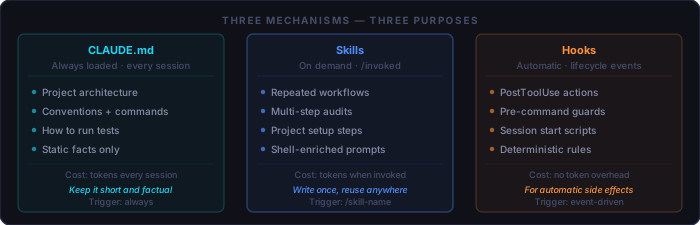
The three mechanisms each solve a different problem. Conflating them leads to over-stuffed context files and hooks that fire at the wrong time.
// Three mechanisms — three purposes

CLAUDE.md        // Always loaded. Project conventions, architecture, commands to run.
                 // Cost: tokens on every session. Keep it short and factual.

Skills           // Loaded on demand. Workflows you run repeatedly but not always.
                 // Cost: tokens only when invoked. Define once, reuse forever.

Hooks            // Triggered automatically by lifecycle events (write, edit, session start).
                 // Cost: shell process overhead per event. Best for deterministic side effects.
If you find yourself typing the same multi-step instruction at the start of several sessions, that is a skill waiting to be written. If it needs to run automatically without any prompt, that is a hook.
Anatomy of a Skill File
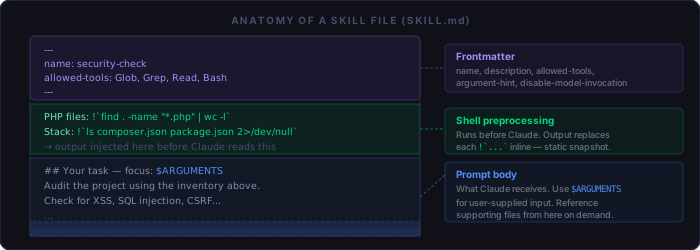
Each skill lives in its own subdirectory. The entry point is always
SKILL.md:
.claude/
└── skills/
    └── my-skill/
        ├── SKILL.md         # required — entry point
        ├── reference.md     # optional — loaded on demand by Claude
        └── scripts/
            └── helper.py   # optional — utilities Claude can run
SKILL.md is a YAML frontmatter block followed by plain Markdown.
The frontmatter configures the skill's behaviour; the Markdown body is the prompt
Claude receives when the skill is invoked:
---
name: my-skill
description: One-line description — Claude uses this to know when to suggest the skill.
argument-hint: [optional arg]
allowed-tools: Glob, Grep, Read, Bash
---

# Skill body (what Claude receives)

Shell output injected here: !`some shell command`

Arguments passed by the user: $ARGUMENTS

## Your task
Describe what Claude should do...
Key Frontmatter Fields
name             # Display name. If omitted, uses directory name.
description      # When to use the skill. Claude reads this to suggest it.
                 # Capped at 1,536 characters in skill listings.
argument-hint    # Shown in autocomplete. e.g. "[target-file]"
allowed-tools    # Pre-approves tools so Claude doesn't prompt for permission.
                 # e.g. "Glob, Grep, Read, Bash"
disable-model-invocation: true
                 # Prevents Claude from auto-triggering the skill.
                 # Use for anything with side effects: deploy, send, delete.
Shell Preprocessing — the Power Feature

The most useful thing skills can do that a bare prompt cannot is execute shell commands before Claude sees the prompt. The output gets injected directly into the skill body. Claude then reasons over real data rather than being told to go find it.
---
name: pr-summary
allowed-tools: Bash
---

# PR Summary

PR diff: !`gh pr diff`
Open comments: !`gh pr view --comments`
CI status: !`gh pr checks`

Summarise the changes, flag any review comments that are unresolved,
and list any failing CI checks with their error output.
When you run /pr-summary, each backtick block executes immediately.
Claude receives a rendered prompt containing the actual diff, comments, and CI
output — not instructions to fetch them. The result is faster, more focused, and
uses fewer turns.
Shell preprocessing runs before Claude. The output is static once injected. Claude cannot re-run the commands mid-session — it sees the rendered snapshot, not live data.
Where Skills Live
Skills are loaded from two locations with different scopes:
# Project-level (this project only)
.claude/skills/<skill-name>/SKILL.md

# Global (available in every project)
~/.claude/skills/<skill-name>/SKILL.md       # Mac / Linux
%USERPROFILE%\.claude\skills\<skill-name>\SKILL.md  # Windows
A project skill is checked into the repository and travels with the codebase. A global skill is personal tooling that follows you across all projects. The security audit built below belongs in the global directory — you will want it on every project you touch.
Step-by-Step: A Security Audit Skill
This skill detects the project type automatically using shell preprocessing, then applies the right checks for PHP web applications, JavaScript/Node projects, Python services, or generic codebases. It works without any arguments but accepts a focus area (a specific file or directory) when you want a narrower audit.
Step 1 — Create the directory
# Global install (works on every project)
mkdir -p ~/.claude/skills/security-check     # Mac / Linux
mkdir "%USERPROFILE%\.claude\skills\security-check"   # Windows cmd

# Or project-local (checked into repo)
mkdir -p .claude/skills/security-check
Step 2 — Write SKILL.md
Create SKILL.md inside that directory with the following content.
The shell preprocessing block at the top runs first, building a project inventory
that Claude uses to decide which checks to apply:
---
name: security-check
description: >
  Audit the current project for security vulnerabilities. Automatically
  detects PHP web apps, JavaScript/Node, Python, and generic codebases
  and applies the relevant checks. Produces a severity-ranked report.
argument-hint: [path or focus area — optional]
allowed-tools: Glob, Grep, Read, Bash
disable-model-invocation: true
---

# Security Audit
Focus: $ARGUMENTS

## Project inventory (auto-detected)
Stack markers: !`ls composer.json package.json requirements.txt go.mod Gemfile 2>/dev/null | tr '\n' ' '`
PHP files:     !`find . -name "*.php" -not -path "./.git/*" -not -path "./vendor/*" 2>/dev/null | wc -l | tr -d ' '`
JS/TS files:   !`find . \( -name "*.js" -o -name "*.ts" \) -not -path "*/node_modules/*" -not -path "./.git/*" 2>/dev/null | wc -l | tr -d ' '`
Python files:  !`find . -name "*.py" -not -path "./.git/*" 2>/dev/null | wc -l | tr -d ' '`
Exposed config:!`ls .env .env.local .env.production config.php auth.php secrets.json 2>/dev/null`
htaccess:      !`find . -name ".htaccess" -not -path "./.git/*" 2>/dev/null`

---

## Your task

Using the project inventory above, conduct a thorough security audit.
If $ARGUMENTS is non-empty, focus the audit on that path or area.

### Always check (all project types)

1. Hardcoded credentials
   Search source files for passwords, API keys, tokens, and secrets
   committed directly in code. Flag any that are not loaded from
   environment variables or a config file blocked from web access.

2. Sensitive files in web root
   Identify any .env, credential, or config files that could be served
   directly over HTTP. Verify they are blocked in .htaccess or equivalent.

3. Path traversal
   Check for user-controlled input reaching file system operations
   (include, require, fopen, fs.readFile, open()) without sanitisation.

4. Command injection
   Look for user input reaching shell_exec, exec, system, child_process,
   subprocess, or eval() without escaping.

5. Dependency vulnerabilities
   If package.json is present, note that `npm audit` should be run.
   If composer.json is present, note that `composer audit` should be run.

### PHP web projects (when PHP file count > 0)

6. XSS — unescaped output
   Search for echo, print, and <?= that output $_GET, $_POST, $_REQUEST,
   or $_COOKIE values without htmlspecialchars() or equivalent escaping.

7. SQL injection
   Look for database queries built with string concatenation using user
   input rather than prepared statements or parameterised queries.

8. CSRF
   Identify all HTML forms with method="post". Verify each form includes
   a CSRF token and that the processing script validates it before acting.

9. Session security
   Check that session_regenerate_id(true) is called after successful login.
   Check that session_destroy() is preceded by session_unset().
   Look for session fixation and session hijacking risks.

10. Authentication bypass
    Verify that all member-only pages start with a session check that
    redirects unauthenticated users before any content is generated.
    Check for direct file access that bypasses the session guard.

11. HTTP security headers
    Review .htaccess or equivalent for: Content-Security-Policy,
    X-Frame-Options, X-Content-Type-Options, Referrer-Policy.
    Flag missing or permissive values (e.g. unsafe-inline in script-src).

### JavaScript / Node projects (when JS/TS file count > 0)

12. DOM XSS
    Search for innerHTML, outerHTML, document.write, and insertAdjacentHTML
    receiving user-controlled data without sanitisation.

13. Prototype pollution
    Look for unsafe object merges, deep clones, or property assignments
    where the key path is user-controlled and could reach __proto__.

14. JWT handling
    Check for algorithm confusion (accepting "none"), missing expiry
    validation, and weak or hardcoded secrets.

15. SSRF
    Identify server-side fetch, axios, or http.request calls where the
    URL is fully or partially user-controlled without allow-list validation.

### Report format

For each issue found, report:
- **Severity**: Critical / High / Medium / Low / Informational
- **File and line number**
- **Description** of the vulnerability
- **Code snippet** showing the problem
- **Fix** — the minimal correct change

Group by severity, highest first. End with a one-line count:
e.g. "Found: 1 Critical, 2 High, 1 Medium, 3 Low, 2 Informational"

If a category has no issues, state that explicitly.
A clean result is useful information — do not omit it.
Step 3 — Invoke the skill
# Full project audit
/security-check

# Focused on one directory
/security-check includes/

# Focused on the auth flow
/security-check sign-in-process.php
On invocation, the shell commands run first. Claude receives the rendered prompt containing your actual file counts and any exposed config files it found. It then reads the relevant source files directly and reports against the checklist.
Step 4 — Deploy globally
Once the skill is working in one project, move it to the global directory so it is available on every project you open:
# Mac / Linux
mv .claude/skills/security-check ~/.claude/skills/security-check

# Windows (PowerShell)
Move-Item .claude\skills\security-check "$env:USERPROFILE\.claude\skills\security-check"
Claude Code watches skill directories for changes. The skill is available immediately in any open session after the move — no restart required.
Adapting the Skill for Your Stack
The security-check skill above uses shell preprocessing to detect the stack and passes that information to Claude. Claude then applies the matching section of the checklist. You can extend this pattern to any workflow that needs to behave differently depending on what it finds.
# Extend the inventory block with your own detection
Docker present: !`test -f docker-compose.yml && echo "yes" || echo "no"`
Test framework: !`ls jest.config.js phpunit.xml pytest.ini 2>/dev/null`
CI config:      !`ls .github/workflows/*.yml 2>/dev/null | head -3`
You can also extend the checklist sections with project-specific rules — for example, adding checks for your own internal API patterns, or verifying that all database calls go through an approved abstraction layer.
What Makes a Good Skill
Use shell preprocessing for data, not logic
Shell commands in a skill run exactly once at invocation. Use them to gather facts — file counts, git state, test results, environment detection. Do not try to implement branching logic in shell and inject it as text. Claude is better at reading a set of facts and deciding what to do than at interpreting complex shell output.
Set disable-model-invocation for side effects
Any skill that writes to disk, sends a message, deploys code, or deletes
something should have disable-model-invocation: true in its
frontmatter. This prevents Claude from auto-triggering the skill when it
thinks it might be relevant — which is exactly the wrong time to deploy.
Keep SKILL.md under 500 lines
If a skill needs a long reference document, put the reference in a separate
file in the skill directory and have SKILL.md tell Claude where
to find it. Claude will read the reference file when it needs it. Loading
everything into the initial prompt wastes context on information that only
applies to some invocations.
.claude/skills/security-check/
├── SKILL.md           # ≤500 lines — entry point and core checklist
├── owasp-reference.md # loaded on demand: "see owasp-reference.md for detail"
└── fix-patterns.md    # loaded on demand: "see fix-patterns.md for remediation"
Pre-approve tools to reduce prompts
Set allowed-tools in the frontmatter to the tools your skill actually
needs. For the security-check skill, Glob, Grep, Read, Bash covers
everything without granting unnecessary access. Claude will not prompt for permission
to use those tools during the skill's execution.
The Relationship to Hooks
A skill and a hook can accomplish similar outcomes through different mechanisms. The right choice depends on whether you want to drive the action or have it happen automatically.
// Security audit as a skill — you control when it runs
/security-check                 → runs when you ask for it
/security-check auth/           → focused where you point it

// Security-related check as a hook — runs automatically
PostToolUse: Write|Edit         → runs a linter after every file write
PreToolUse: Bash                → intercepts dangerous shell commands
A security audit is the right candidate for a skill because it is exploratory —
you want Claude's reasoning, not just a rule-based check. A hook that blocks
rm -rf is the right candidate for a hook because it is a fixed rule
that should run automatically every time.
Quick Reference
Skill file structure:
  ~/.claude/skills/<name>/SKILL.md    # global
  .claude/skills/<name>/SKILL.md      # project-local

Invocation:
  /skill-name                          # no arguments
  /skill-name some-file.php            # with argument → $ARGUMENTS
  /skill-name "multi word argument"    # quoted multi-word

Variables in SKILL.md:
  $ARGUMENTS                           # everything passed after the skill name
  $ARGUMENTS[0]  or  $0               # first argument only
  $ARGUMENTS[1]  or  $1               # second argument only
  ${CLAUDE_SKILL_DIR}                  # path to the skill's own directory

Shell preprocessing:
  !`command`                           # inline — output replaces the expression

Essential frontmatter:
  name                                 # skill name (defaults to directory name)
  description                          # when to use — Claude reads this
  argument-hint                        # shown in autocomplete
  allowed-tools                        # pre-approved: Glob, Grep, Read, Bash, ...
  disable-model-invocation: true       # required for skills with side effects

Security-check skill checklist:
  [ ] Directory created in ~/.claude/skills/security-check/
  [ ] SKILL.md written with frontmatter + inventory block + checklist
  [ ] /security-check runs without error on a test project
  [ ] Focused invocation tested: /security-check <specific-file>
  [ ] Skill produces severity-ranked output with file + line citations
A skill is not a macro. It is a reusable context injection. The difference matters: a macro replaces keystrokes; a skill gives Claude a defined lens through which to look at your project. The quality of the output scales with the quality of the checklist — so write it the way you would write a code review guide for a new team member.