Development
Local Preview with Docker
Edit PHP files and see changes instantly in your browser — without touching the live server.
TL;DREditing files directly on a production server is a well-known way to introduce a syntax error at 11 pm on a Friday. A local Docker container eliminates that risk: your full PHP + Apache stack runs on your own machine, pointed at your actual source files, so every save is instantly testable in a browser before anything goes near the server.
The setup described here is specific to how mrworkbook.com is structured —
the Dockerfile and docker-compose.yml already live in
the mrworkbook.com/ docroot. Docker Desktop on your machine is the
only prerequisite. You do not need to understand container internals to use it.
Adapting This for Your Own Site
If your site was set up using the working directory template from the Lightsail setup guide, your local directory structure already matches what the Docker files expect. Copy both files into your docroot and the paths work without modification:
mysitename/
└── website/
    ├── nonserve/
    │   └── .env               ← mounted to /var/www/nonserve inside the container
    └── mysitename.com/        ← put Dockerfile and docker-compose.yml here
        ├── Dockerfile
        ├── docker-compose.yml
        └── index.php  ...
The ../nonserve path in docker-compose.yml resolves
correctly to website/nonserve/ because the file sits one level down
inside the docroot. No path changes are needed.
Two things to set up locally
The Lightsail guide populates .env on the server, but the file also
needs to exist in your local website/nonserve/ for the container to
read it. If you created it during setup it is already there. If not, create it now
with the same keys:
MARIADB_HOST=yoursitename.com
MARIADB_DB=yourdb
MARIADB_USER=youruser
MARIADB_PASS=yourpassword
Pages that do not touch the database work without this file. If you only need to preview layout and content changes, you can skip it and ignore any DB errors.
The second local requirement is vendor/. Composer is installed on
the server, but not locally. The container includes the Composer binary, so you
can install dependencies on the first run without installing Composer on your
own machine:
# Start the container first, then in a second terminal:
docker compose exec web composer install
This creates vendor/ inside the container, which is volume-mounted
to your local docroot — so the directory appears on disk and persists after the
container stops. You only need to do this once, or again after adding a new
package to composer.json.
The local container connects to your live production database over the network.
That is convenient for read-heavy preview work, but any write operations —
form submissions, admin actions — hit real data. If your site has forms or
admin pages you want to test, add a local MariaDB container (see below) and
point a local .env copy at it.
The Dockerfile — what to change
If your server matches the Lightsail guide (Ubuntu 22.04, PHP 8.3, Apache, MariaDB), the Dockerfile requires no changes. For other setups:
PHP version:
  FROM php:8.3-apache          ← change 8.3 to match your server (7.4, 8.1, 8.2, etc.)

Apache modules:
  a2enmod rewrite expires deflate headers
                               ← add or remove to match your server's enabled modules

PHP extensions:
  docker-php-ext-install intl mysqli
                               ← match what your code uses
                                  common additions: pdo_mysql, gd, zip, mbstring, bcmath

Composer:
  COPY --from=composer:latest  ← remove if your site has no composer.json
Keep the opcache setting regardless of your stack — it is what makes file edits visible on reload without restarting the container.
The docker-compose.yml — what to change for other layouts
Port mapping:
  "8080:80"                    ← change 8080 if that port is in use on your machine
                                  any unused port works: 8081, 8090, 3000, etc.

Volume — docroot:
  .:/var/www/html              ← correct for Apache's default DocumentRoot; leave as-is

Volume — secrets (.env):
  ../nonserve:/var/www/nonserve  ← change the left side if your .env lives elsewhere
                                    remove this line entirely if your site has no .env

Local MariaDB (optional — for write-safe testing):
  db:
    image: mariadb:11
    environment:
      MARIADB_ROOT_PASSWORD: localdev
      MARIADB_DATABASE: mysite
    # point a second .env copy at host "db" instead of your server hostname
Where to put the files for non-template layouts
Place both files in whatever directory you will run docker compose up
from — typically your docroot alongside index.php. Commit them
freely and exclude them from production uploads via the robocopy /XF
flag in your upload script, the same way uploadcontent-web.bat
does here.
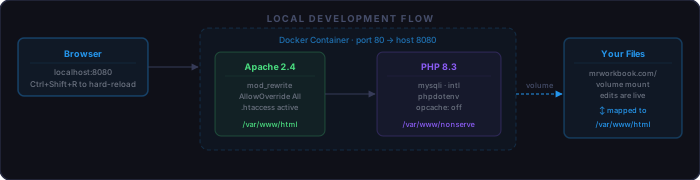
mrworkbook.com/ directory directly into the container's document root, so there is no copy step. Save a file in your editor and reload the browser — that's the whole cycle.Install Docker Desktop
Docker Desktop is a free application that manages containers on your machine. Download the installer for your OS from docker.com/products/docker-desktop and run it.
Windows requirements:
  WSL2 backend enabled (Windows 10 21H2+ or Windows 11)
  Virtualisation enabled in BIOS / UEFI
  ~4 GB RAM available for the Docker engine

macOS requirements:
  Apple Silicon or Intel Mac
  macOS 12 Monterey or later recommended

After installation:
  Docker Desktop runs as a background service
  A whale icon appears in the system tray / menu bar
  No account or login is required for local use
Once installed, open a terminal and confirm Docker is running:
docker --versionAny version from the last two years is fine. You do not need to keep it aggressively up to date for local dev work.
What the Project Files Do
Two files in the mrworkbook.com/ directory drive the local
environment. They are committed to the repo but excluded from production uploads.
Dockerfile
Defines the container image — what software it contains and how it is configured.
This one starts from the official php:8.3-apache image and adds
everything the site needs:
FROM php:8.3-apache

RUN a2enmod rewrite expires deflate headers

# AllowOverride All so .htaccess rewrites work inside the container
RUN sed -i 's/AllowOverride None/AllowOverride All/g' /etc/apache2/apache2.conf

# Disable opcache file caching so edits are visible on every reload
RUN echo "opcache.validate_timestamps=1\nopcache.revalidate_freq=0" \
    > /usr/local/etc/php/conf.d/opcache-dev.ini

# Extensions required by vlucas/phpdotenv
RUN apt-get update && apt-get install -y libicu-dev git unzip \
    && docker-php-ext-install intl mysqli \
    && rm -rf /var/lib/apt/lists/*

# Composer binary — available inside the container for running composer commands
COPY --from=composer:latest /usr/bin/composer /usr/bin/composer
The opcache setting is the important one for local work. Without it, PHP caches
compiled scripts and ignores edits until the cache expires. With
revalidate_freq=0, every request checks whether the file on disk
has changed — no restarts needed.
docker-compose.yml
Describes how to run the container: which port to use and which directories to mount from the host machine.
services:
  web:
    build: .
    ports:
      - "8080:80"     # host port 8080 → container port 80
    volumes:
      - .:/var/www/html              # docroot: live edits, no copy step
      - ../nonserve:/var/www/nonserve # .env file, one level up
The second volume mounts the nonserve/ directory — the same
location the production server uses for .env. This means your
local container loads real database credentials and phpdotenv
works identically to production, with no code changes.
Excluded from Production Uploads
uploadcontent-web.bat uses robocopy to copy files to
a staging area before SCP. It explicitly excludes every Docker-related file so
they never land on the server:
robocopy mrworkbook.com upload-tmp /E /XF Dockerfile composer.json composer.lock docker-compose.yml /XD vendor
This means you never have to think about it: commit both files freely, run
uploadcontent-web.bat normally, and the server never sees them.
The vendor/ directory is excluded for the same reason — Composer
is run on the server directly after the first deploy, and kept current there.
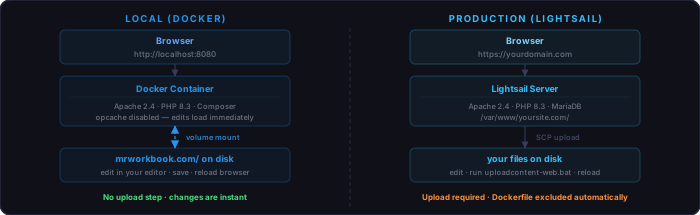
Step-by-Step: First-Time Setup
Step 1 — Open a terminal in the docroot
The docker compose commands must be run from the directory that
contains docker-compose.yml.
# Navigate to the mrworkbook.com directory
cd C:\aiwork2\server\mrworkbook\website\mrworkbook.com
Step 2 — Build and start the container
The first run requires --build to construct the image. This
downloads the base PHP image and installs the extensions — takes 2–4 minutes
on the first run, then the layers are cached.
docker compose up --buildLeave this terminal open. Docker streams Apache's access and error log to it in real time — useful for spotting PHP errors and 404s as you work.
Step 3 — Open the site
Once Docker reports web-1 | AH00558 or similar Apache startup
messages, open your browser and navigate to:
http://localhost:8080
The site should load exactly as it does in production. If a page requires
database access, that works too — the container reads the same .env
file via the mounted nonserve/ volume and connects to the production
MariaDB over the network.
Step 4 — Edit files and see changes
Open any .php, .css, or .js file in
your editor and save. Reload the browser — the change is live. No restart, no
upload, no cache to clear on the server side. The volume mount means the
container reads your actual files on every request.
Step 5 — Hard-refresh the browser
PHP file changes are always immediate. CSS and JavaScript changes may appear stale because the browser caches static assets. A hard reload forces the browser to re-fetch everything for the current page:
Hard reload shortcuts (bypass cache for this page load):
  Windows / Linux   Ctrl + Shift + R   or   Ctrl + F5
  macOS             Cmd  + Shift + R

Supported in:
  Firefox · Chrome · Edge · Opera — all treat these as identical
A hard reload does not clear the cache — it bypasses it for that one page load. Cached assets remain on disk. If you navigate away and return, the browser may use the old version again. For persistent cache issues during active CSS or JS work, open DevTools (F12), go to the Network tab, and tick Disable Cache. That setting stays active for as long as DevTools is open and is the most reliable option during development.
Step 6 — Stop the container
Press Ctrl+C in the terminal where Docker is running, or from
any terminal in the same directory:
docker compose down
Port 8080 is shared. If you have multiple project clones, only one can run at
a time. Use docker compose down in the current project before
starting another.
Subsequent Starts
After the image is built, you do not need --build on every start.
Use the short form for day-to-day work:
docker compose up
Re-run with --build only when Dockerfile itself
changes — for example, if a new PHP extension is added. Changes to
docker-compose.yml (ports, volumes) are picked up automatically
without a rebuild.
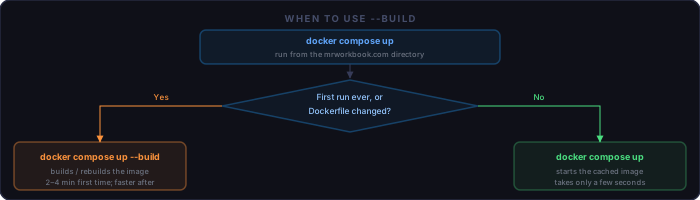
--build. Every other day-to-day start uses plain up. Editing PHP, CSS, or JS files never requires a rebuild — those are loaded live from disk via the volume mount.Browser Cache Behaviour in Detail
Ctrl+Shift+R and Ctrl+F5 are identical in every mainstream browser. Both send
a Cache-Control: no-cache header on the request, instructing the
server to return a fresh response. The browser ignores its locally cached copy
for that load.
The important distinction is what they do not do:
Hard reload  (Ctrl+Shift+R / Ctrl+F5)
  Bypasses cache for this page load only
  Cached files remain in the browser's cache on disk
  Next navigation to the same URL may use the cached version again
  Works in: Firefox, Chrome, Edge, Opera — all browsers

Full cache clear  (Ctrl+Shift+Delete → Cached images and files)
  Removes cached files from disk
  All subsequent requests fetch from the server until re-cached
  Overkill for most dev work — use when hard reload isn't fixing it

DevTools Disable Cache  (F12 → Network tab → Disable cache checkbox)
  Cache bypassed for every request while DevTools is open
  Best option when actively editing CSS or JS
  Resets when DevTools is closed
Safari on macOS uses Cmd+Option+E to empty the cache (requires the Develop menu to be enabled in Settings), then a normal reload. Safari does not have a Ctrl+Shift+R equivalent — the DevTools Network tab disable-cache checkbox is the practical shortcut there too.
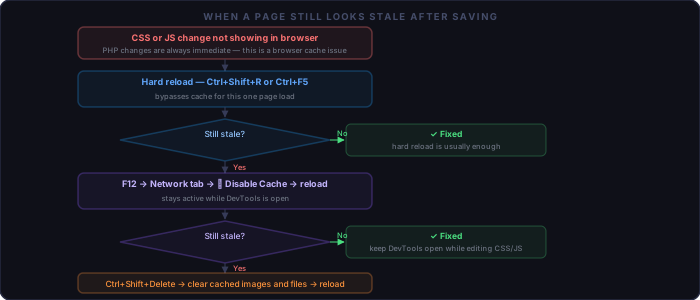
Running Composer Inside the Container
The Dockerfile copies the Composer binary into the image, so you
can run Composer commands inside the container if needed — for example, to
install or update packages locally and verify they work before doing the same
on the server.
# Run a command inside the running container
docker compose exec web composer require vlucas/phpdotenv

# Or open a shell
docker compose exec web bash
Keep in mind that vendor/ is excluded from production uploads.
Any Composer work that affects the server still needs to be run on the server
directly via SSH.
Checklist
One-time setup:
  [ ] Docker Desktop installed and running (whale icon in system tray)
  [ ] docker --version confirms it responds
  [ ] nonserve/.env exists one level above mrworkbook.com/ (needed for DB pages)

First run:
  [ ] Terminal open in mrworkbook.com/ directory
  [ ] docker compose up --build completes without errors
  [ ] localhost:8080 loads the site in the browser
  [ ] A PHP page that uses the database loads correctly

Daily workflow:
  [ ] docker compose up (no --build needed after first time)
  [ ] Edit files in editor, reload browser to see changes
  [ ] Ctrl+Shift+R if CSS or JS appears stale
  [ ] F12 Network → Disable Cache for active CSS/JS editing sessions
  [ ] docker compose down before switching to another project clone