Cloud
Setting Up a Lightsail Web Server
From a blank AWS account to a LAMP server serving your domain over HTTPS — no shortcuts.
TL;DRAWS Lightsail is Amazon’s fixed-price VPS offering — a pre-configured Linux instance with attached SSD storage, a static IP option, and a simplified firewall, all managed from a console that’s much less overwhelming than the full AWS Management Console. Unlike EC2, there are no per-hour compute surprises and no separate load balancer or block-storage bills to track. You pick a plan, pay a flat monthly rate, and get a fully functional server.
This article walks through setting up a LAMP server — Linux, Apache, MariaDB, and PHP — on a fresh Lightsail instance, pointing a real domain at it, installing an SSL certificate, and setting up a local working directory you can deploy from. By the end you’ll have a server ready for content and a repeatable deploy workflow. Later articles cover adding database-backed PHP, Docker Compose for local testing, and setting up the same server as a private git host.
Once your server can accept traffic and run PHP against MariaDB, the next thing most sites need is a login system. See Identity Management, Part 1: Concepts & Approaches for that series, built on exactly the stack this article sets up.
The Stack
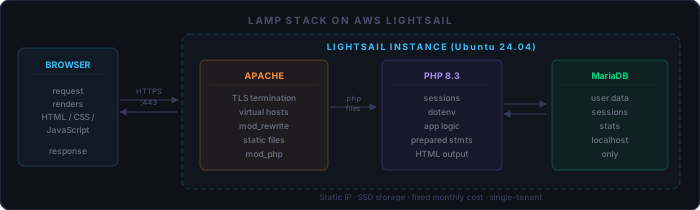
- Linux (Ubuntu 24.04 LTS) — the OS. Lightsail provides a clean, pre-configured image with nothing extra installed.
- Apache — the web server. Handles TLS termination, virtual hosts, URL rewriting, and static file delivery. PHP is wired in via
mod_php. - MariaDB — a drop-in MySQL replacement. Stores application data. Configured to listen on localhost only.
- PHP 8.3 — server-side scripting. Apache routes
.phprequests throughmod_php; the response is rendered HTML.
What It Costs
Domain name:      $10–20/year at your registrar of choice
SSL certificate:  free (Let’s Encrypt / certbot) — or $10–100/year from a CA
Lightsail plan:   $3.50/month (512 MB RAM, 20 GB SSD) up to $160/month
                  The 2 GB RAM / 60 GB SSD / $10/month plan handles most small sites
Static IP:        free while attached to a running instance
                  $0.005/hour if unattached — release any IP you are not using
Start with a plan slightly larger than you think you need. Lightsail lets you upgrade (by snapshotting and relaunching from the snapshot), but you cannot downgrade a running instance in place. The $3.50 plan is tight for a LAMP stack under any real load.
Before You Start
Two steps need time and money to complete, and both run in parallel with everything else. Start them before touching AWS.
Register Your Domain
Purchase your domain at any registrar. DNS propagation after pointing your domain at a new IP can take up to 48 hours, though it’s usually much faster. Start the registration now so the delay runs concurrently with your server setup.
Obtain an SSL Certificate
Two paths:
- Let’s Encrypt / certbot — free, automated,
and renews every 90 days. The certbot tool issues a certificate against
your live domain, so DNS must resolve to the server before it can issue.
Instructions at certbot.eff.org.
Certbot deposits the key and cert in
/etc/letsencrypt/live/yoursite.com/. See the Using Let’s Encrypt article for wiring this into the deploy workflow described below — including auto-renewal — without certbot’s Apache plugin fighting the upload scripts. - Commercial CA — purchase from your registrar or a CA
such as Sectigo or DigiCert. You receive a
.crt, a.key, and usually an intermediate.pemchain file. The template workflow described below is built around this layout.
Create the Lightsail Instance
- Log in to the AWS Management Console and open Lightsail.
- Click Create instance.
- Choose the AWS Region closest to your users.
- Under Select a blueprint choose OS Only → Ubuntu 24.04 LTS.
- Under SSH key pair, click Download to save the default key file.
Save this immediately. AWS does not store the private half.
If you lose it you can only reset the pair — you cannot retrieve
the original. Rename the downloaded file to
yoursitename.pem. - Choose an instance plan. The 2 GB RAM / $10 plan is a reasonable starting point for a LAMP site with moderate traffic.
- Give the instance a name and click Create instance.
Assign a Static IP
By default, Lightsail instance IPs change when the instance is stopped and restarted. A DNS A record pointing at a moving target stops working. Assign a static IP before you configure DNS:
- In the Lightsail console, open the Networking tab.
- Click Create static IP and attach it to your new instance.
- Each AWS account includes five static IPs at no charge while they are attached to a running instance. Detach and release any IP you stop using — an unattached static IP costs $0.005/hour.
Open the Firewall
In your instance’s Networking tab under IPv4 Firewall, ensure these ports are open:
Port 22    SSH     (open by default — keep it)
Port 80    HTTP    (open by default — Apache needs it for the HTTP→HTTPS redirect)
Port 443   HTTPS   (add this if not already present)
Port 3306  Custom  (MariaDB — only open this if you need remote DB access)
           Leave 3306 closed if all DB connections come from the server itself.
Point Your Domain
At your domain registrar’s DNS control panel, add an A record:
Type:  A
Name:  @          (root domain, or blank depending on your registrar)
Value: 1.2.3.4    (your Lightsail static IP)
TTL:   3600
Add a second A record for www pointing to the same IP if you
want www.yoursite.com to resolve as well. While you wait for
DNS to propagate, you can SSH directly to the IP address.
Create Your Local Working Directory
All development and deployment work happens from a local working directory on your machine. This directory holds your site files, deploy scripts, Apache configuration, and the SSH key. A template and a creation script set it up in one step.
Extract the archive. It contains a template/ directory and
two creation scripts. The scripts expect to be run from the same directory
that contains template/.
Run create-site
From the directory where you extracted the archive, run the script for your platform and pass it an install path and your site name:
# Windows
create-site.bat C:\sites mysitename

# Linux / macOS
./create-site.sh /home/user/sites mysitename
The script clones the template directory into
<install-path>/mysitename/,
replacing every occurrence of the word template — in
directory names, file names, and file contents — with your site name.
It asks for confirmation before creating anything and refuses to overwrite
an existing directory.
What Gets Created
mysitename/
├── mysitename.pem             ← copy your AWS .pem key here after running the script
├── mysitename.url             ← browser shortcut to your site
├── mysitename-ssh.bat         ← SSH into the server
├── uploadall.bat              ← SCP everything and run refresh.sh
├── uploadcontent.bat          ← SCP docroot only
├── uploadcontent-web.bat      ← SCP docroot, skip Docker / Composer files
├── database/
│   └── gitadd.txt
└── website/
    ├── apache2/
    │   ├── mysitename.conf        ← HTTP vhost config
    │   ├── mysitename-ssl.conf    ← HTTPS vhost (redirects HTTP, terminates TLS)
    │   ├── setup.sh               ← enable HTTP vhost (first run)
    │   ├── update.sh              ← re-deploy HTTP vhost
    │   └── update-ssl.sh          ← switch to HTTPS-only vhost
    ├── csr/
    │   ├── copythem.sh            ← install certs into /etc/ssl/
    │   ├── match.bat              ← verify key/cert match (Windows)
    │   └── match.sh               ← verify key/cert match (Linux / macOS)
    ├── nonserve/
    │   └── .env                   ← secrets; Apache can never serve this directory
    ├── refresh.sh                 ← set ownership and permissions server-side
    └── mysitename.com/
        └── index.php              ← starter index page
After the script finishes, copy your .pem key file (downloaded
from Lightsail) into the new directory and rename it to match:
mysitename.pem.
The create-site Scripts
The Windows and Linux versions produce identical results. Both confirm before creating, refuse to overwrite an existing directory, and print the resulting tree. The Windows version writes a temporary PowerShell script to handle the text substitution, then deletes it.
@echo off
setlocal

if "%~1"=="" (
    echo Usage: %~nx0 ^<install-path^> ^<site-name^>
    exit /b 1
)
if "%~2"=="" (
    echo ERROR: site-name parameter required.
    echo Usage: %~nx0 ^<install-path^> ^<site-name^>
    exit /b 1
)

set INSTALLDIR=%~1
set SITENAME=%~2
set TEMPLATE_DIR=%~dp0template
if "%TEMPLATE_DIR:~-1%"=="\" set TEMPLATE_DIR=%TEMPLATE_DIR:~0,-1%
set NEW_DIR=%INSTALLDIR%\%SITENAME%

if not exist "%TEMPLATE_DIR%\" (
    echo ERROR: Template directory not found: %TEMPLATE_DIR%
    exit /b 1
)
if not exist "%INSTALLDIR%\" (
    echo ERROR: Install path does not exist: %INSTALLDIR%
    exit /b 1
)

echo.
echo This will clone the template directory to create a new site:
echo.
echo   Source : %TEMPLATE_DIR%
echo   Target : %NEW_DIR%
echo.
echo All occurrences of "template" will be replaced with "%SITENAME%"
echo in directory names, file names, and file contents.
echo.
set /p CONFIRM=Proceed? [Y/N]:
if /i not "%CONFIRM%"=="Y" (
    echo Aborted.
    exit /b 0
)

if exist "%NEW_DIR%" (
    echo ERROR: "%NEW_DIR%" already exists.
    exit /b 1
)

echo.
echo Creating "%SITENAME%"...

set PSFILE=%TEMP%\create_site_%RANDOM%.ps1
(
    echo param^($s, $t, $n^)
    echo Get-ChildItem -LiteralPath $t -Recurse -File ^| ForEach-Object {
    echo     $rel = $_.FullName.Substring^($t.Length + 1^)
    echo     $newRel = $rel -replace 'template', $s
    echo     $dest = Join-Path $n $newRel
    echo     $destDir = Split-Path $dest -Parent
    echo     if ^(-not ^(Test-Path $destDir^)^) { New-Item -ItemType Directory -Path $destDir ^| Out-Null }
    echo     $content = [IO.File]::ReadAllText^($_.FullName^)
    echo     $newContent = $content -replace 'template', $s
    echo     [IO.File]::WriteAllText^($dest, $newContent^)
    echo }
) > "%PSFILE%"

powershell -NoProfile -ExecutionPolicy Bypass -File "%PSFILE%" -s "%SITENAME%" -t "%TEMPLATE_DIR%" -n "%NEW_DIR%"
set PSERR=%ERRORLEVEL%
del "%PSFILE%" 2>nul

if %PSERR% neq 0 (
    echo ERROR: Site creation failed.
    exit /b 1
)

echo.
echo Done. Tree of %NEW_DIR%:
echo.
TREE /F "%NEW_DIR%"#!/usr/bin/env bash
set -e
SCRIPT_DIR="$(cd "$(dirname "$0")" && pwd)"
TEMPLATE_DIR="$SCRIPT_DIR/template"
if [ -z "$1" ]; then
echo "Usage: $(basename "$0") <install-path> <site-name>"
exit 1
fi
if [ -z "$2" ]; then
echo "ERROR: site-name parameter required."
echo "Usage: $(basename "$0") <install-path> <site-name>"
exit 1
fi
INSTALLDIR="$1"
SITENAME="$2"
NEW_DIR="$INSTALLDIR/$SITENAME"
if [ ! -d "$TEMPLATE_DIR" ]; then
echo "ERROR: Template directory not found: $TEMPLATE_DIR"
exit 1
fi
if [ ! -d "$INSTALLDIR" ]; then
echo "ERROR: Install path does not exist: $INSTALLDIR"
exit 1
fi
echo
echo "This will clone the template directory to create a new site:"
echo
echo " Source : $TEMPLATE_DIR"
echo " Target : $NEW_DIR"
echo
echo "All occurrences of \"template\" will be replaced with \"$SITENAME\""
echo "in directory names, file names, and file contents."
echo "CR/LF line endings will be converted to LF."
echo
read -rp "Proceed? [Y/N]: " CONFIRM
if [[ ! "$CONFIRM" =~ ^[Yy]$ ]]; then
echo "Aborted."
exit 0
fi
if [ -d "$NEW_DIR" ]; then
echo "ERROR: \"$NEW_DIR\" already exists."
exit 1
fi
echo
echo "Creating \"$SITENAME\"..."
find "$TEMPLATE_DIR" -type f | while IFS= read -r src; do
rel="${src#${TEMPLATE_DIR}/}"
newrel="${rel//template/$SITENAME}"
dest="$NEW_DIR/$newrel"
mkdir -p "$(dirname "$dest")"
sed 's/\r$//' "$src" | sed "s|template|$SITENAME|g" > "$dest"
chmod "$(stat -c '%a' "$src")" "$dest"
done
echo
echo "Done. Tree of $NEW_DIR:"
echo
find "$NEW_DIR" | sortProvision the Server
SSH in using the mysitename-ssh.bat script that
create-site generated, or directly from a terminal:
ssh -i mysitename.pem ubuntu@YOUR_STATIC_IPUpdate the OS and install the LAMP stack:
# Update the OS
sudo apt update && sudo apt upgrade -y

# Apache + required modules
sudo apt install apache2 -y
sudo a2enmod ssl rewrite
sudo systemctl restart apache2

# PHP and the Apache PHP module
sudo apt install php php-mysql libapache2-mod-php -y

# MariaDB
sudo apt install mariadb-server -y
sudo mysql_secure_installation
The mysql_secure_installation script walks through removing
anonymous users, disabling remote root login, and dropping the test database.
Answer yes to every prompt.
Create a Database and User
sudo mariadb

CREATE DATABASE mysitename CHARACTER SET utf8mb4 COLLATE utf8mb4_unicode_ci;
CREATE USER 'mysitename'@'localhost' IDENTIFIED BY 'a-strong-password';
GRANT ALL PRIVILEGES ON mysitename.* TO 'mysitename'@'localhost';
FLUSH PRIVILEGES;
EXIT;
Grant only localhost access unless you specifically need remote
connections. Keeping MariaDB off the public network is the most effective
single database security measure you can take.
Install Your SSL Certificate
Place your certificate files in the website/csr/ subdirectory
of your local working directory before uploading:
mysitename/website/csr/
├── mysitename.key                  ← private key
├── mysitename.crt                  ← signed certificate from your CA
└── mysitename-intermediate.pem     ← CA chain file (if provided)
Before uploading, verify that the key matches the certificate. A mismatched pair will cause Apache to refuse to start:
# Windows
website\csr\match.bat

# Linux / macOS
./website/csr/match.sh

# Both scripts print the MD5 hash of the key modulus and the cert modulus.
# The two hashes must be identical. If they differ, you have the wrong key.
Certificate filename mismatch — common mistake: The cert and key filenames inwebsite/csr/must exactly match the paths declared inmysitename-ssl.conf. If your CA issued files namedmysite.crt/mysite.keyormysite.com.crt/mysite.com.key, openmysitename-ssl.confand confirm theSSLCertificateFileandSSLCertificateKeyFilelines use those exact names before continuing.
Once verified, run uploadall.bat to push everything to the
server. Then SSH in and install the certificates:
cd /var/www/mysitename/website/csr
./copythem.sh
copythem.sh copies *.crt and *.pem
to /etc/ssl/certs/ and *.key to
/etc/ssl/private/. The paths in
mysitename-ssl.conf reference these locations.
Connect Your Site to Apache
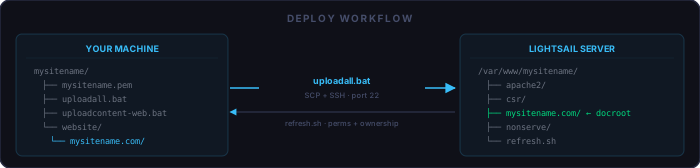
website/ tree, then SSHes in to run refresh.sh which sets the correct ownership and permissions server-side.
SSH into your server. The Apache management scripts live in
/var/www/mysitename/website/apache2/.
Step 1 — Enable HTTP First
cd /var/www/mysitename/website/apache2
sudo ./setup.sh
setup.sh copies mysitename.conf to
/etc/apache2/sites-available/, runs a2ensite,
and restarts Apache. Open a browser and navigate to
http://mysitename.com — you should see the starter
index page.
Step 2 — Switch to HTTPS
cd /var/www/mysitename/website/apache2
sudo ./update-ssl.sh
update-ssl.sh disables the HTTP-only vhost and enables the
SSL vhost. The SSL vhost redirects all plain HTTP traffic to HTTPS and
terminates TLS using the certificates you installed with
copythem.sh. Test at https://mysitename.com.
Disable the Apache Default Site
sudo a2dissite 000-default.conf
sudo systemctl restart apache2
The default site catches any request that doesn’t match a configured
virtual host — including direct requests to the IP address. Disabling
it means Apache returns nothing for requests that don’t match a
ServerName.
Deploying Changes
Two scripts handle all deployment, both run from your local working directory.
scp -i mysitename.pem -r mysitename/website/. ubuntu@mysitename.com:/var/www/mysitename
ssh -i mysitename.pem ubuntu@mysitename.com "find /var/www/mysitename -type f -print0 | xargs -0 sed -i 's/\r$//'"
ssh -i mysitename.pem ubuntu@mysitename.com "sudo bash /var/www/mysitename/refresh.sh"robocopy ..\mysitename\website\mysitename.com C:\mysitename-upload-tmp /E /XF Dockerfile composer.json composer.lock docker-compose.yml /XD vendor
scp -i ..\mysitename\mysitename.pem -r C:/mysitename-upload-tmp/. ubuntu@mysitename.com:/var/www/mysitename/mysitename.com
ssh -i ..\mysitename\mysitename.pem ubuntu@mysitename.com "sudo bash /var/www/mysitename/refresh.sh"
rd /s /q C:\mysitename-upload-tmp
uploadcontent-web.bat is faster for routine content edits because
it only copies the public docroot and excludes Docker and Composer files.
Use uploadall.bat for the initial deployment and after any change
to Apache configs, shell scripts, or the nonserve/ directory.
refresh.sh (called by both scripts at the end) sets server-side
ownership and permissions: ubuntu:www-data ownership,
2755 on directories, 644 on files, and
755 on shell scripts.
Keep Secrets Out of Your Code
Database passwords, API keys, and other credentials belong in a
.env file — never in committed source
files. The template places .env in
website/nonserve/, one directory above the Apache document
root. Apache’s document root is
website/mysitename.com/, so nonserve/ is
unreachable even if Apache is misconfigured.
Install Composer and DotEnv (server-side, once)
# Install Composer
curl -sS https://getcomposer.org/installer | php
sudo mv composer.phar /usr/local/bin/composer

# In your site's docroot
cd /var/www/mysitename/mysitename.com
composer require vlucas/phpdotenv
Populate .env
Edit website/nonserve/.env locally, then upload with
uploadall.bat. Do not commit this file to version control:
MARIADB_HOST=localhost
MARIADB_USER=mysitename
MARIADB_PASS=your-strong-password
MARIADB_NAME=mysitename
Load .env in PHP
require_once __DIR__ . '/vendor/autoload.php';
(Dotenv\Dotenv::createImmutable(__DIR__ . '/../nonserve/'))->load();

// Access credentials via $_ENV
$host = $_ENV['MARIADB_HOST'];
$user = $_ENV['MARIADB_USER'];
$pass = $_ENV['MARIADB_PASS'];
Set Up a Git Repository
Version-control your working directory from the start. Initialize from the site root:
cd mysitename
git init
git add .
git commit -m "initial scaffold"
Add a .gitignore before that first commit to exclude
credentials, server-installed dependencies, and the private key:
website/nonserve/.env
website/mysitename.com/vendor/
*.pem
Never commit.envor.pemfiles. A credential committed even briefly — even to a private repository — should be treated as compromised. Rotate it immediately.
Multiple Sites on One Server
A single Lightsail instance can host additional domains without significant extra work. For each additional site, repeat the same steps:
- Run
create-sitefor the new site name to create a second working directory. - Place the new site’s SSL certs in
website/csr/. - Run
uploadall.bat— this installs to/var/www/newsitename/, completely independently of the first site. - SSH in, run
copythem.shto install certs, thenupdate-ssl.shto enable the new vhost.
Apache routes incoming requests by ServerName in each
-ssl.conf file. Each site is isolated in its own
/var/www/newsitename/ tree. Compromised credentials for
one site do not affect the others.
/var/www/
├── mysitename/          ← first site
│   └── mysitename.com/  ← docroot for mysitename.com
└── othersitename/       ← second site
    └── othersitename.com/ ← docroot for othersitename.com
Security Basics
A fresh server with a stock Ubuntu install passes most automated scans. A few hardening steps are worth doing before you put real content on it:
- Confirm key-only SSH. Lightsail disables password SSH
by default. Verify it’s still set in
/etc/ssh/sshd_config:PasswordAuthentication no. - Keep packages updated. Run
sudo apt update && sudo apt upgraderegularly, or enable automatic security updates:sudo apt install unattended-upgrades. - Run Lynis.
sudo apt install lynis && sudo lynis audit systemproduces a scored report with specific hardening suggestions for your exact configuration. - Install Fail2ban.
sudo apt install fail2banautomatically blocks IPs that exceed failed SSH login thresholds. - Review open ports.
sudo ufw status verboseshows what is and isn’t open at the OS level. Close anything you didn’t intentionally open in the Lightsail firewall.
Additional security review is content-specific. A PHP site with a database needs different hardening than a static file server. That is covered in the security audit article.
What Comes Next
- Local testing with Docker Compose. Before uploading,
run your site in a local container that mirrors the Ubuntu + Apache + PHP
production environment. A
docker-compose.ymlandDockerfilefor this setup are covered in the Docker Compose article. - Development with Claude Code. Claude runs from the
working directory, reads your
CLAUDE.md, and deploys via the same upload scripts. The workflow article describes how to structure a project for effective AI-assisted development. - Database-backed pages. The server is ready for any content once it’s running. Subsequent articles cover PHP sessions and auth, secure file handling with S3, and the full mrworkbook.com site architecture.
- Running a git server. A future article covers setting up Gitea on Lightsail for private repository hosting on the same or a separate instance.
Checklist
Prerequisites:
  [ ] Domain name registered
  [ ] SSL certificate obtained (Let’s Encrypt or commercial CA)
  [ ] AWS account created

Lightsail setup:
  [ ] Instance launched — Ubuntu 24.04 LTS, OS Only blueprint
  [ ] Default .pem key downloaded and saved immediately (cannot be retrieved later)
  [ ] Static IP created and attached to the instance
  [ ] Firewall: port 443 open, port 3306 only if remote DB access is needed
  [ ] DNS A record pointing domain to static IP

Local working directory:
  [ ] websitetools.zip downloaded and extracted
  [ ] create-site script run — working directory created
  [ ] .pem key file copied into the new directory and renamed to sitename.pem
  [ ] SSL cert files placed in website/csr/ (.key, .crt, intermediate .pem)
  [ ] match.bat / match.sh run — key and cert hashes are identical
  [ ] .gitignore created excluding .env, vendor/, *.pem
  [ ] git repository initialized

Server provisioning:
  [ ] apt update && apt upgrade run
  [ ] Apache installed; mod_ssl and mod_rewrite enabled
  [ ] PHP 8.3 installed with php-mysql and libapache2-mod-php
  [ ] MariaDB installed; mysql_secure_installation completed
  [ ] Site database and localhost-only user created

SSL and Apache:
  [ ] uploadall.bat run — full site deployed to /var/www/sitename/
  [ ] copythem.sh run server-side — certs installed into /etc/ssl/
  [ ] setup.sh run — HTTP vhost enabled; site loads over http://
  [ ] update-ssl.sh run — HTTPS vhost active; site loads over https://
  [ ] 000-default.conf disabled

Secrets and dependencies:
  [ ] Composer installed server-side; vlucas/phpdotenv required
  [ ] website/nonserve/.env populated with DB credentials
  [ ] .env confirmed absent from git history and .gitignore covers it

Security basics:
  [ ] SSH password auth confirmed disabled (PasswordAuthentication no)
  [ ] Fail2ban installed
  [ ] Lynis audit run; critical findings addressed
  [ ] UFW open ports reviewed against Lightsail firewall rules