Cloud
Getting Started with AWS
Creating an account, choosing a region, setting up an IAM admin user, and a tour of the services you'll actually use.
TL;DRAmazon Web Services is the dominant cloud platform, home to over 200 services covering compute, storage, databases, networking, security, AI, and more. Getting your account configured correctly in the first hour prevents security problems and billing surprises that are genuinely hard to fix later. The most common mistakes are all made right at the start: choosing a paid support plan by accident, using the root account for daily work, and skipping multi-factor authentication.
This article walks through account creation step by step, explains how to find your way around the console, covers regions and how pricing varies between them, sets up an IAM admin user for day-to-day work, and finishes with a tour of the services you are most likely to need.
What You Need Before Starting
- An email address. This becomes your root account login. Consider
using a dedicated address or an alias (e.g.,
yourname+aws@gmail.com) rather than your primary personal email. You will rarely use it after setup, but it is the master key to the account. - A phone number for identity verification during signup.
- A credit or debit card. AWS will not charge you for staying within the free tier, but a card is required to create the account. A $1 temporary authorization may appear and then reverse.
- An authenticator app (Google Authenticator, Authy, 1Password, or similar) installed on your phone. You will use it to enable MFA immediately after account creation.
Creating the Account
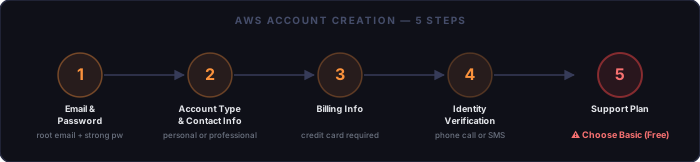
Go to aws.amazon.com and click Create an AWS Account.
Step 1 — Email Address and Root Password
Enter your root email address and choose a strong, unique password. This email/password pair is your root credential — it can do anything to the account including close it and change billing. Use a password manager to generate and store this.
Step 2 — Account Type and Contact Information
Choose between Personal and Professional. The only difference is which contact fields appear on the form — both account types have identical features and pricing. Choose whichever matches your situation. Fill in your name and address.
Step 3 — Billing Information
Enter a credit or debit card. AWS places a $1 temporary authorization to validate the card, which reverses within a few days. You will not be charged unless you use paid services beyond the free tier.
Step 4 — Identity Verification
AWS will call or text the phone number you provide with a verification code. Enter the code to confirm your identity.
Step 5 — Support Plan (Critical Choice)
This is the page where new users accidentally sign up for a paid plan. AWS presents four options:
Basic         FREE     Documentation, forums, health dashboard, Trusted Advisor
                         (7 core checks). This is what you want.

Developer     $29/mo   Adds business-hours email support from AWS engineers.
                         Reasonable once you have a production workload.

Business     $100/mo+ 24/7 phone, chat, and email support. Based on % of usage.
                         Required for serious production environments.

Enterprise  $15,000/mo  Dedicated Technical Account Manager and concierge support.
Always start with Basic (Free). You can upgrade later from the console in under two minutes. The default selection on this page is not always Basic — read carefully before clicking through.
After selecting Basic and completing the form, your account is created. AWS may take a few minutes to activate it fully. You will receive a confirmation email.
Immediately After: Secure the Root Account
Before doing anything else, enable multi-factor authentication on the root user. A compromised root credential is catastrophic — it can delete all your resources, rack up a large bill, or lock you out entirely. MFA limits the damage if your root password is ever exposed.
- Sign in to the console at console.aws.amazon.com.
- Click your account name in the top right → Security credentials.
- Under Multi-factor authentication (MFA), click Assign MFA device.
- Choose Authenticator app, click Next.
- Scan the QR code with your authenticator app, enter two consecutive codes to confirm, and save.
Once root MFA is enabled, log out. From this point on you should be doing all your AWS work through an IAM admin user, described below. The root account is held in reserve for the small number of tasks that genuinely require it.
Do not create access keys for the root user. AWS will warn you about this. Root access keys give programmatic god-mode access with no MFA protection. If they are ever leaked, your entire account is exposed.
Understanding Regions
AWS infrastructure is divided into geographic regions. Each
region is a separate cluster of data centers, physically isolated from all other
regions. Resources you create in one region do not appear in another. An S3 bucket
created in us-east-1 is invisible when you are looking at
eu-west-1 in the console.
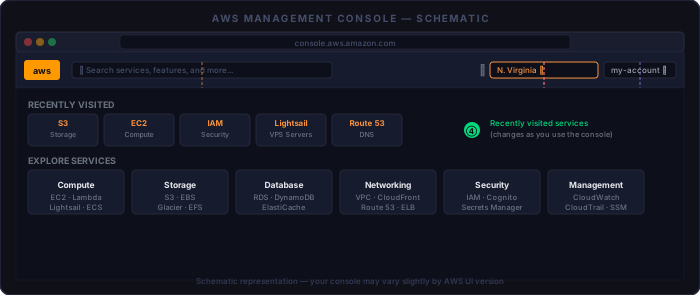
The region selector is in the top-right corner of the console navigation bar (callout ② in the diagram above). It is easy to miss and easy to forget to change. Always verify which region you are in before creating any resource.
Region                      Code             Notes
────────────────────────────────────────────────────────────────────
US East (N. Virginia)       us-east-1        Most new services land here first.
                                             Historically the lowest prices.
US East (Ohio)              us-east-2        Slightly newer; good US-East redundancy.
US West (Oregon)            us-west-2        Standard West Coast choice.
Europe (Ireland)            eu-west-1        Most popular European region.
Europe (Frankfurt)          eu-central-1     Required for some EU data-residency rules.
Asia Pacific (Singapore)    ap-southeast-1   Hub for Southeast Asia.
Asia Pacific (Tokyo)        ap-northeast-1   Japan and East Asia.
Pick the region closest to the majority of your users unless you have a specific compliance requirement. Prices for the same service vary by 10–20% across regions. US East (N. Virginia) is generally the benchmark; other regions typically cost the same or more.
A handful of services are global and not tied to a region: IAM, Route 53, CloudFront, and the Billing console. Everything else — EC2 instances, S3 buckets (though their content is globally accessible), RDS databases, Lambda functions — lives in the region where you created it.
For detailed current pricing: aws.amazon.com/pricing — every service has its own pricing page with a region-by-region breakdown. The AWS Pricing Calculator lets you estimate monthly costs before you commit to a configuration.
The Free Tier
New AWS accounts get access to the Free Tier for 12 months from the account creation date. After 12 months, free-tier limits expire and normal rates apply. Some services have an always-free tier that never expires.
12-month free tier (from account creation date):
  EC2     750 hours/month of t2.micro or t3.micro (one region at a time)
  S3      5 GB storage, 20,000 GET requests, 2,000 PUT requests/month
  RDS     750 hours/month of db.t2.micro or db.t3.micro, 20 GB storage
  CloudFront  1 TB data transfer out, 10 million requests/month

Always-free (no expiry):
  Lambda  1 million requests/month, 400,000 GB-seconds compute
  DynamoDB  25 GB storage, 25 read + 25 write capacity units/month
  SES     3,000 message charges/month (sending from EC2)
  CloudWatch  10 custom metrics, 5 GB log ingestion/month
Set up a billing alarm even on the free tier. Go to CloudWatch → Alarms → Billing and create an alert for any amount above $0 (or $1 as a buffer). AWS will email you if charges appear unexpectedly. This takes two minutes and has saved many developers from surprise bills.
Setting Up Your IAM Admin User
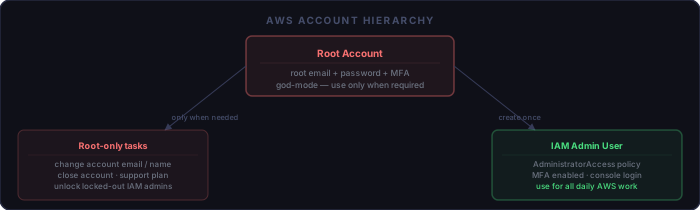
IAM (Identity and Access Management) is AWS’s permission system. It lets you create users, groups, and roles with precisely defined access. Even when you are the sole user of your account, working through an IAM user instead of root limits the blast radius if credentials are ever compromised — an IAM user can be quickly disabled or have keys rotated without affecting the account itself.
Create the IAM Admin User
- Sign in as root, search for IAM in the services search bar.
- In the left sidebar, click Users → Create user.
- Enter a username (e.g.,
adminor your name). - Check Provide user access to the AWS Management Console.
- Choose I want to create an IAM user (not an Identity Center user).
- Set a strong password. Uncheck “User must create a new password” if you are setting it up for yourself.
- Click Next. On the permissions page, choose Attach policies directly.
- Search for
AdministratorAccessand check the box next to it. - Click through to Create user. Download the credentials CSV or copy the console sign-in URL, username, and password.
Enable MFA on the IAM User
- From the IAM Users list, click the new user → Security credentials tab.
- Under Multi-factor authentication, click Assign MFA device.
- Follow the same authenticator-app steps as for the root account (use a different entry in your authenticator app — this is a separate credential).
Sign In as the IAM User
Each AWS account has a unique console sign-in URL in the form:
https://123456789012.signin.aws.amazon.com/consoleYour 12-digit account ID appears in the top-right account menu when you are signed in as root. Bookmark this URL. From now on, sign in here with your IAM username and password, not with the root email and password.
What Only the Root User Can Do
AWS reserves a small set of sensitive operations for the root user exclusively.
No IAM user — even one with AdministratorAccess — can
perform these. Keep this list short in your memory; these are the only times you
should sign in as root:
- Change the account’s email address or account name.
- Change the root account password.
- Change or cancel the AWS Support plan.
- Close the AWS account entirely.
- Restore IAM user permissions when all admin IAM users are locked out (the root user is the escape hatch).
- Activate IAM user access to the Billing and Cost Management console (a one-time setting, done once after account creation).
- View certain tax invoices in billing settings.
- Enable S3 MFA Delete on a bucket.
- Edit or delete an S3 bucket policy that contains an invalid VPC ID or VPC endpoint ID (a rare edge case).
- Register as a seller in the Reserved Instance Marketplace.
- Sign up for AWS GovCloud.
- Create legacy CloudFront key pairs.
One useful first root-session task: go to Billing and Cost Management → Account and enable IAM user and role access to Billing information. This lets your IAM admin user view bills and set budget alerts without signing in as root every time.
Commonly Used Services
AWS has over 200 services. Most accounts use a small fraction of them. Here are the ones you are most likely to encounter.
IAM — Identity and Access Management
The permission layer for everything. Users, groups, roles, and policies live here. You are already using it after creating your admin user. IAM is global — not tied to a region. Any role or policy you create is available across all regions.
S3 — Simple Storage Service
Object storage at massive scale. Store files, images, backups, static website assets, or data lake content. Each bucket is in a specific region but its content is accessible globally via HTTPS. Pricing is based on storage volume, requests, and data transfer out. The free tier covers 5 GB of storage.
EC2 — Elastic Compute Cloud
Virtual machines in the cloud. You choose the instance type (CPU, RAM), the OS, the storage, and the networking configuration. EC2 is billed by the second (for Linux). It is the most flexible and most complex compute option — you manage the OS, patching, and scaling yourself.
Lightsail
AWS’s simplified VPS product. Fixed monthly pricing, a simplified console, pre-configured blueprints (LAMP, WordPress, Node.js), and a much shorter learning curve than EC2. The right choice for straightforward web servers, small sites, and development environments. See the Lightsail setup article for a full walkthrough.
RDS — Relational Database Service
Managed relational databases: MySQL, PostgreSQL, MariaDB, Oracle, SQL Server, and Aurora. AWS handles backups, patching, failover, and replication. You connect to it like any database server. Substantially more expensive than running MariaDB on a Lightsail or EC2 instance, but eliminates operational overhead.
Lambda
Serverless compute. Upload a function (Python, Node.js, Go, Java, etc.) and AWS runs it in response to events — HTTP requests via API Gateway, S3 uploads, scheduled timers, SQS messages, and many others. You pay only for execution time, measured in milliseconds. Ideal for event-driven tasks that do not need a persistent server.
CloudFront
AWS’s CDN. Distributes content from a global network of edge locations, reducing latency for geographically dispersed users. Commonly used in front of S3 (for static assets) or EC2/ALB (for dynamic applications). Also terminates TLS and can apply WAF rules. CloudFront is a global service — distributions are not region-specific.
Route 53
AWS’s DNS service and domain registrar. Highly available, globally distributed. Supports standard DNS record types plus routing policies like latency-based, failover, and geolocation routing. Route 53 is global — not tied to a region. You can register domains here or just manage DNS for a domain registered elsewhere.
SES — Simple Email Service
Transactional and bulk email sending. Used to send account confirmation emails, password resets, notifications, and marketing campaigns. Starts in “sandbox mode” (can only send to verified addresses); you submit a support request to move to production. Pricing is per 1,000 messages.
CloudWatch
Monitoring, logging, and alerting. Collects metrics from EC2, Lambda, RDS, and almost every other AWS service. You can create dashboards, set alarms (including the billing alarm recommended above), and aggregate logs from your applications. CloudWatch is the first place to look when something breaks.
Checklist
Account creation:
  [ ] Root email address chosen (consider a dedicated alias)
  [ ] Strong root password set and stored in a password manager
  [ ] Account type selected (personal or professional — same features either way)
  [ ] Credit card added for billing
  [ ] Support plan: Basic (Free) selected — not Developer, Business, or Enterprise
  [ ] Account activation confirmed via email

Root account security (do this before anything else):
  [ ] MFA enabled on root user (authenticator app)
  [ ] Root access keys NOT created (leave this section empty)
  [ ] IAM user access to Billing activated (Billing → Account settings)

IAM admin user:
  [ ] IAM user created with a clear name (admin, yourname, etc.)
  [ ] AdministratorAccess managed policy attached
  [ ] Console access enabled with a strong password
  [ ] MFA enabled on the IAM user (separate entry in authenticator app)
  [ ] Account sign-in URL bookmarked
  [ ] Signed in as IAM user — all further work uses this login

Regions and billing:
  [ ] Primary region chosen and verified in the console region selector
  [ ] Billing alarm created in CloudWatch (alert on any charge above $0 or $1)
  [ ] Free tier expiry date noted (12 months from account creation)
  [ ] AWS Pricing Calculator bookmarked for estimating new workloads